A Customisable Custom Help Cog For Red:
[p]chelp to see what can be customised and [p]chelp settings for even more customisations.Setup
Note: Use [p]chelp set 1 to set your help to the custom help, else it’ll remain as the normal one
- Start by doing
[p]chelp listto list all your cogs - Pick the cogs you need to group into a category.Then use
[p]chelp create, now add the catergorized cogs as shown below.Note
This command can be run as many times as needed and can load up cogs into existing categories as well.
This is the yaml syntax.category1: - Cog1 - Cog2 category2: - Cog3 - Cog4

Congrats, you just bunched up cogs into categories. Now you can do
[p]help <category>to load the help of all those cogs in the category.- Now
[p]helpshould show those categories to be that much cooler!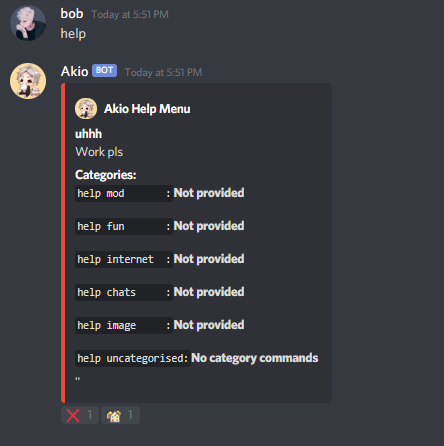
- Yay! But wait, we need to fill in the blanks.Use
[p]chelp editto add the everything you need to customise a category.The format is simply:category: - name: new name (ONLY use this to rename! else this isn't necessary) - desc: new description - long_desc: long description - reaction: reaction emoji
Feel free to mix and match to your liking, as in example below: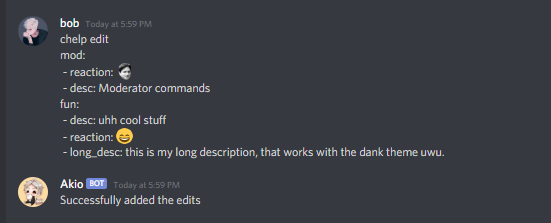
- Once you’ve edited everything, your help menu will look even more impressive!
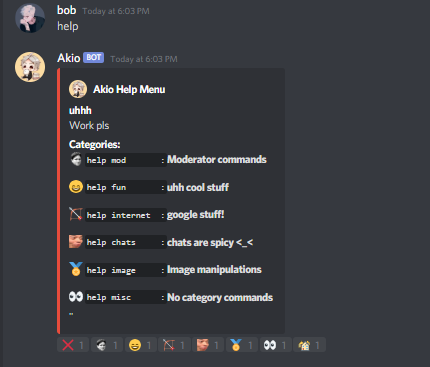
But wait, there’s even more.
Themes
Introducing themes that were shamesslessly ripped off from other bots cause I’m bad at designing.
[p]chelp listthemesThis will get all the themes and the features available in each of them.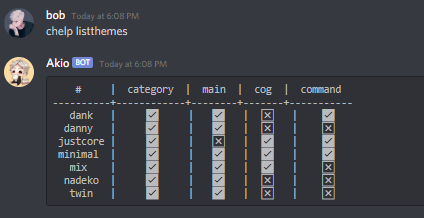
[p]chelp load <theme> <feature>This will load the respective theme for a particular feature.Note
You can use[p]chelp load <theme> allto load all the available feature in that theme.You can also mix and match any theme. (You will not lose configured categories. <_<)An example of[p]chelp load dank mainis shown below: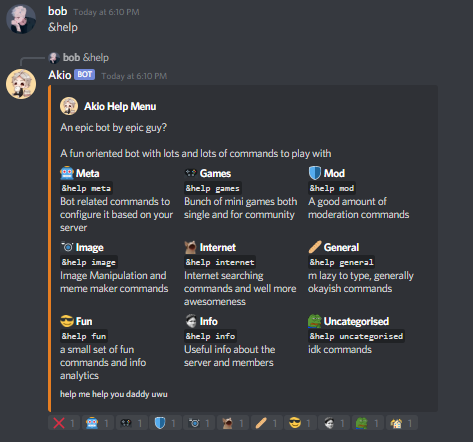
[p]chelp showThis will show what themes are loaded, along with your current settings.
[p]chelp unload <feature>Run this command to reset the given feature back to default.[p]chelp resetThis command will reset the themes to default.
Note
This won’t revert to the regular Red help menu, to do so use [p]chelp set 0
Whew, wait you thought we were done? Or are we…
Category Configuration
developer or even NSFW from public[p]chelp devThis will hide categories and only be visible by the bot owner.[p]chelp nsfwThis will hide categories to only be visible within NSFW-marked channels.[p]chelp autoTo make a pre-formatted list of categories, this will take tags from your installed cogsand auto-generate a list for you to use in[p]chelp create.[p]chelp infoThis will provide a description of themes available.
Custom Help Settings
[p]chelp settings, including but not limited to[p]chelp settings arrowsCustom Navigation, YAY!If you feel the default arrow icons are boring and plain, and you want to spice up navigation, you’re probably looking for this. (Supports custom emotes.)When using custom emotes from servers, your bot must also have access to them to be used.You can use the emote ID (:some_emote:123456789123), or use the emote itself in the following format:left : emoji right: emoji cross: emoji home : emoji force_left: emoji force_right: emoji
[p]chelp settings thumbnailIf you ever wanted to add a little image on the top right of the embed, you can set the imagefor the thumbnail with a valid link.Note
The link must be a direct image link, ending in GIF, JPG, or PNG.
[p]chelp settings timeoutThis will change how long the reaction menu stays (in seconds) before being removed.[p]chelp settings usebuttonsIf you want to use buttons instead of emote reactions for menus, you’ll want to use this command.Note
In order to use buttons, you need
slashtagsfrom Phen-cogs for them to work properly.[p]chelp settings usereactionsThis will enable (or disable) the use of reactions for the help menu.[p]chelp settings usereplyThis will have the bot reply to your message after using commands.
Additional Notes
Don’t be a moron trying to mix minimal theme (non-embed) with the other embed-based themes.
Use [p]helpset pagecharlimit to increase or decrease your page size, so as to add/subract more categories per page.
For my sanity, kindly disable menus if you are using the minimal theme.
A Good Practice is to have the category names all lowercased and the category description as Camelcase.
All the reactions and arrow emojis can be custom and even animated, you can even put the emoji ID (if you don’t have nitro).
- Feel free to suggest new themes which you might want to see. Let me know if you think any part of the theme can be made better.I’m available in the Cog Support server.
If the owner of any bot feels that their theme needs to be removed from this cog, please inform me, I’ll remove it.
FAQ
Reactions are not working, why?!
Your bot should have the react perms
[p]helpset usemenus 1(menus must be enabled)
Can I make my own theme in your cog?
Well you can just learn about the help formatter api.If you really need categories as well then you can fork my repo, navigate to the themes folder, see how the themes are made and make a new file in that folder with your custom coded theme and load the cog.Your theme should magically appear in the[p]chelp listthemesSome of my reactions are vanishing?
You probably have more than 14 categories. A message can only have 14 reactions from a bot at max (I think). This is a discord limitation and it’s unhandled by the cog.
Credits
My heartfelt thanks to OofChair and TwinShadow. Both of these amazing people did some major testing and contribution to the cog.
To everyone who patiently answered my noob coding questions.
To the other bots
R.Danny,Dankmemer,Nadekofrom which the theme designs were taken.Pikachu's help menufrom Flare which was the spark, that the idea of this cog isn’t too far fetchedThe whole Red community cause redbot is epic and the help_formatter is God sent.
Special thanks to Jackenmen who solved most of the doubts that came during the development.